Gmail, Google Drive & QuickBooks
Connect Gmail, Google Drive, and QuickBooks Online to BotBoss so your agents can read your email, search your files, and answer questions about your finances — all under permissions you control. This page explains how to connect each service, how to grant an agent access, and exactly what each connector can and cannot do.
Before you connect: Google test-user gate
Gmail and Google Drive use restricted OAuth scopes that require Google's verification before any Google account can connect. Until that verification is complete, only allow-listed test users can authorize these connectors. If your account is not yet on the allow list, the OAuth consent screen will show an error.
Contact us to be added to the test-user list. This restriction does not apply to QuickBooks.
Connecting a connector
- Go to Connections → Connectors in BotBoss (the Connections item in the left sidebar).
- Find the connector you want — Gmail, Google Drive, or QuickBooks Online — and click Connect.
- You are taken to the provider's own sign-in page (Google or Intuit). Sign in to the account you want to connect. BotBoss never sees your password.
- Review the permissions listed on the consent screen and click Authorize (or Allow). You are redirected back to BotBoss.
- The connector appears in your Connectors list with a Connected status. It is now ready to be granted to agents.
You can disconnect at any time by clicking the connector row and choosing Disconnect. You can also revoke access directly from your Google Account settings or your Intuit developer dashboard — BotBoss will surface a Reconnect prompt the next time it detects the grant is gone.
Granting an agent access
A connected connector is not automatically visible to your agents. You must explicitly grant each agent access.
- On the Connectors page, click the row for the connector you want to share.
- Open the Agent access panel.
- Toggle on the agent(s) you want to give access to.
- Click Save.
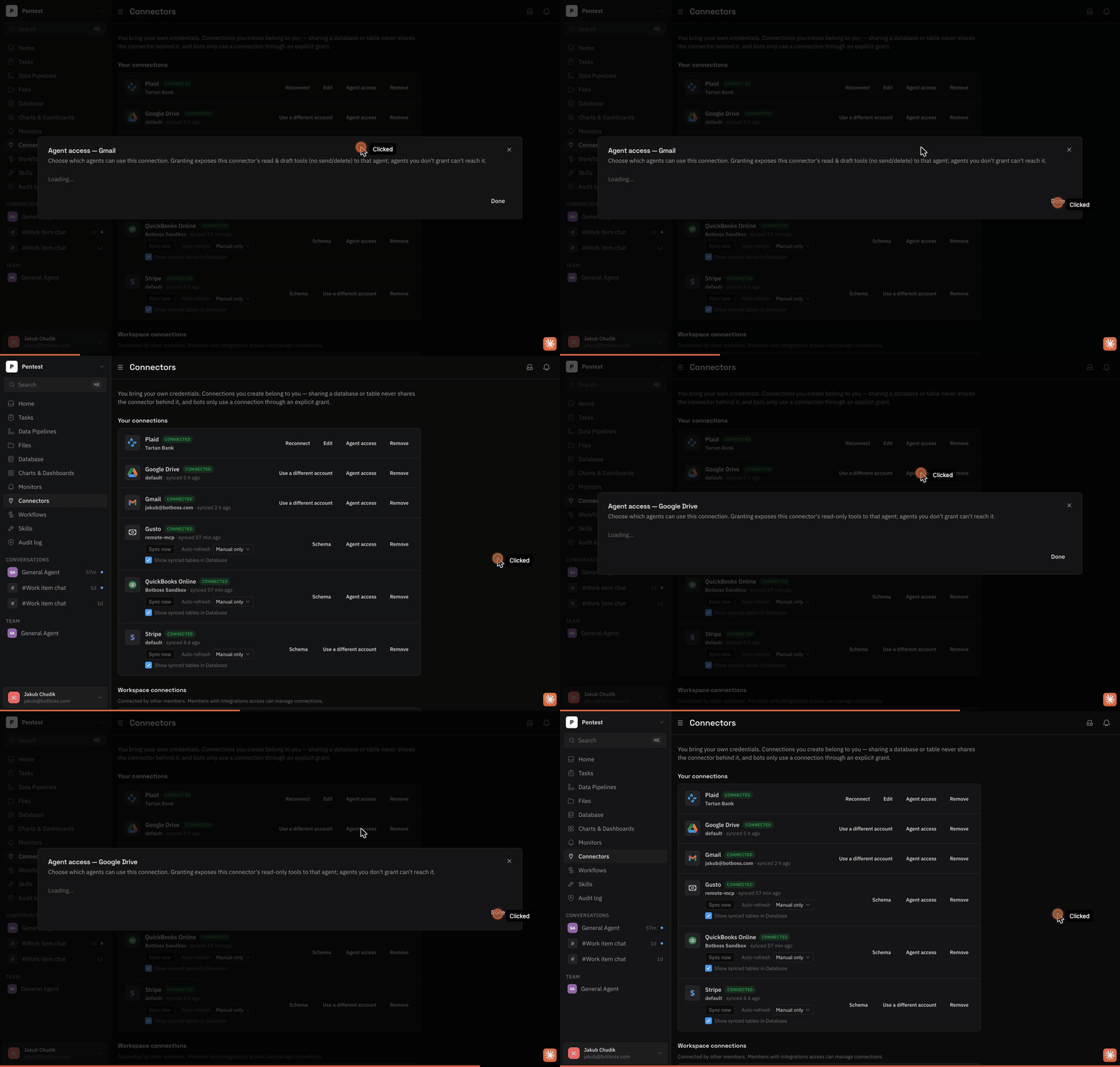
The agent can now use the connector's tools in its next conversation. To revoke access, return to the same dialog and toggle the agent off.
What your agents can and cannot do
The table below is exact and complete. BotBoss enforces these limits in code — agents do not have access to any tools that are not listed here, and the scopes requested from each provider reflect only what is shown.
Gmail
OAuth scopes granted: gmail.readonly + gmail.compose
| Action | Allowed? |
|---|---|
| Read messages and threads | Yes |
| Search your inbox | Yes |
| Create a draft (unsent) | Yes |
| Send a message | No |
| Delete or archive messages | No |
| Modify labels or mark as read | No |
An agent can compose a complete reply and save it as a draft. You open Gmail, review the draft, and hit Send yourself. The agent never sends on your behalf.
Google Drive
OAuth scope granted: drive.readonly
Drive access comes in two parts that differ by reach, not by read versus write — there is no write tool at all. "Read files it can name" lets an agent open a file you give it the link or id of, or one whose exact name matches a single file. "Search and list the whole Drive" is what lets an agent go looking, and is on by default.
Untick the second one and, from that agent's next run onward, BotBoss refuses its Drive search and recent-files tools — and refuses to browse for candidates too: a name that matches nothing gets no near-name suggestions, and a name matching several files gets no list of them, because those hand back other files' ids.
Two limits, stated rather than glossed:
- The refusal is BotBoss's, not Google's. The Google credential is read-only over the whole Drive either way, so an agent that already holds a file's id can still read that file. Narrowing the credential itself is not built yet.
- It covers the Drive agent tools. The file browser you use in the app to pick files is a separate path and is not covered by this setting yet.
| Action | Allowed? |
|---|---|
| Search for files | Only with "Search and list the whole Drive" |
| Read file content and metadata | Yes, by id or unique exact name |
| Create or upload files | No |
| Rename or move files | No |
| Delete files | No |
| Change sharing or permissions | No |
QuickBooks Online
The agent path is read-only. There is no OAuth write scope in BotBoss's QBO integration — the agent queries your live QuickBooks data and can stage draft entries inside BotBoss, but nothing is pushed back to QuickBooks.
| Action | Allowed? |
|---|---|
| Read the general ledger and transactions | Yes |
| Pull reports (P&L, balance sheet, etc.) | Yes |
| Read customers, vendors, invoices, bills | Yes |
| Stage a draft journal entry inside BotBoss | Yes — local only, never synced to QBO |
| Create or modify transactions in QuickBooks | No |
| Reconcile, approve, or post entries to QBO | No |
Example: read email and draft a reply
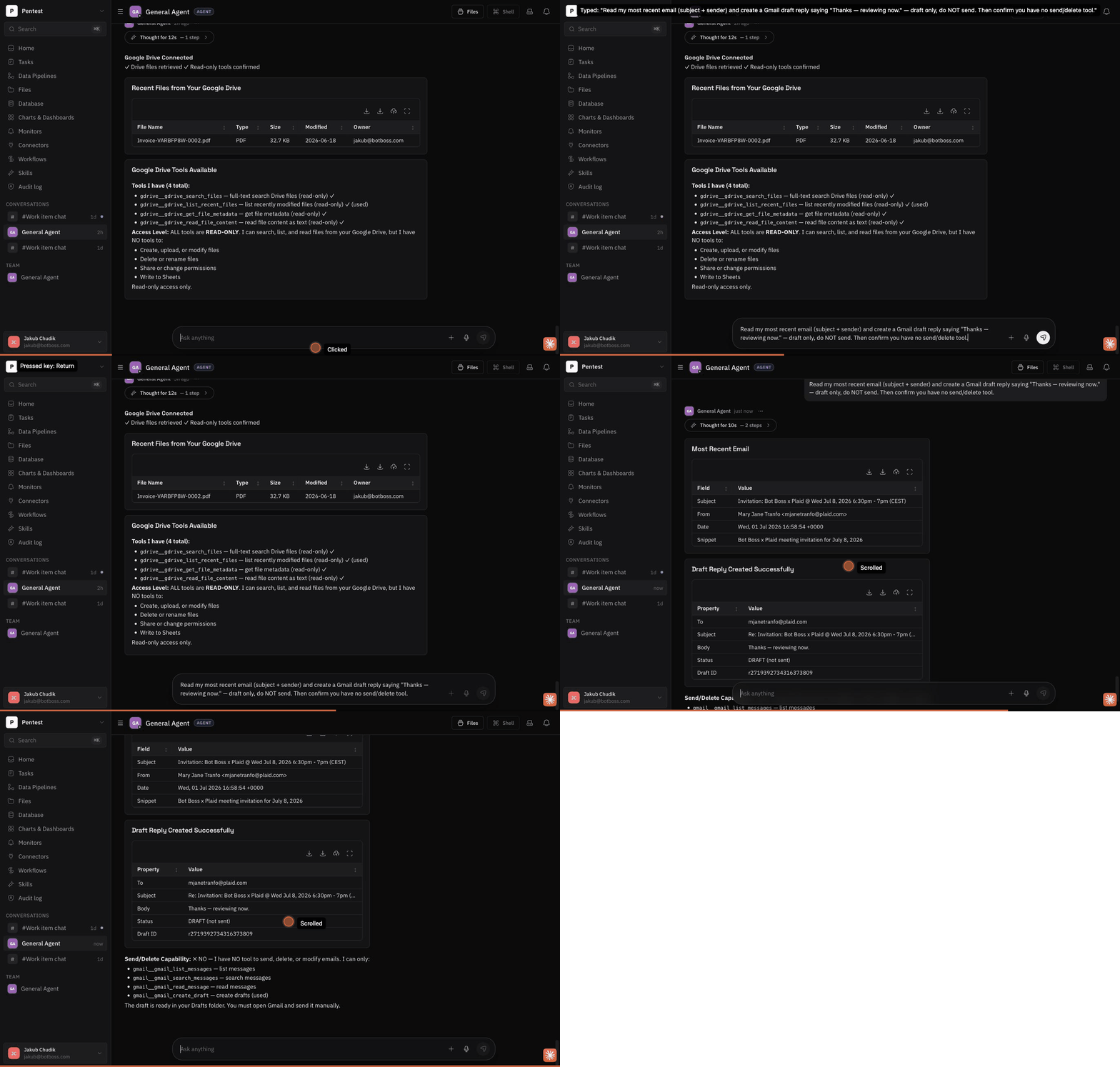
Ask your agent:
"Read my most recent unread email and draft a reply saying I'll review it by end of week."
The agent uses its Gmail access to fetch the thread, composes a reply, and saves it as a draft in your Gmail account. You open Gmail, find the draft in your Drafts folder, edit it if needed, and send it yourself.
Related
- Overview of all connectors: Connectors & Integrations
- Sharing permissions model: Sharing & Permissions
- Agent capabilities reference: Agent tools